

Chest Shops
Chest Shops provide a convenient way for players to buy and sell items directly from each other, even while the shop owner is offline. Each shop can be configured with its own prices, stock, transaction amounts, employees, revenue shares and teleport destination, making the system suitable for anything from a small individual shop to a larger player-run business.
Creating a Chest Shop
To create a shop, place a supported container such as a Chest, Barrel or Copper Chest. Look directly at the container and use:
/chestshop create
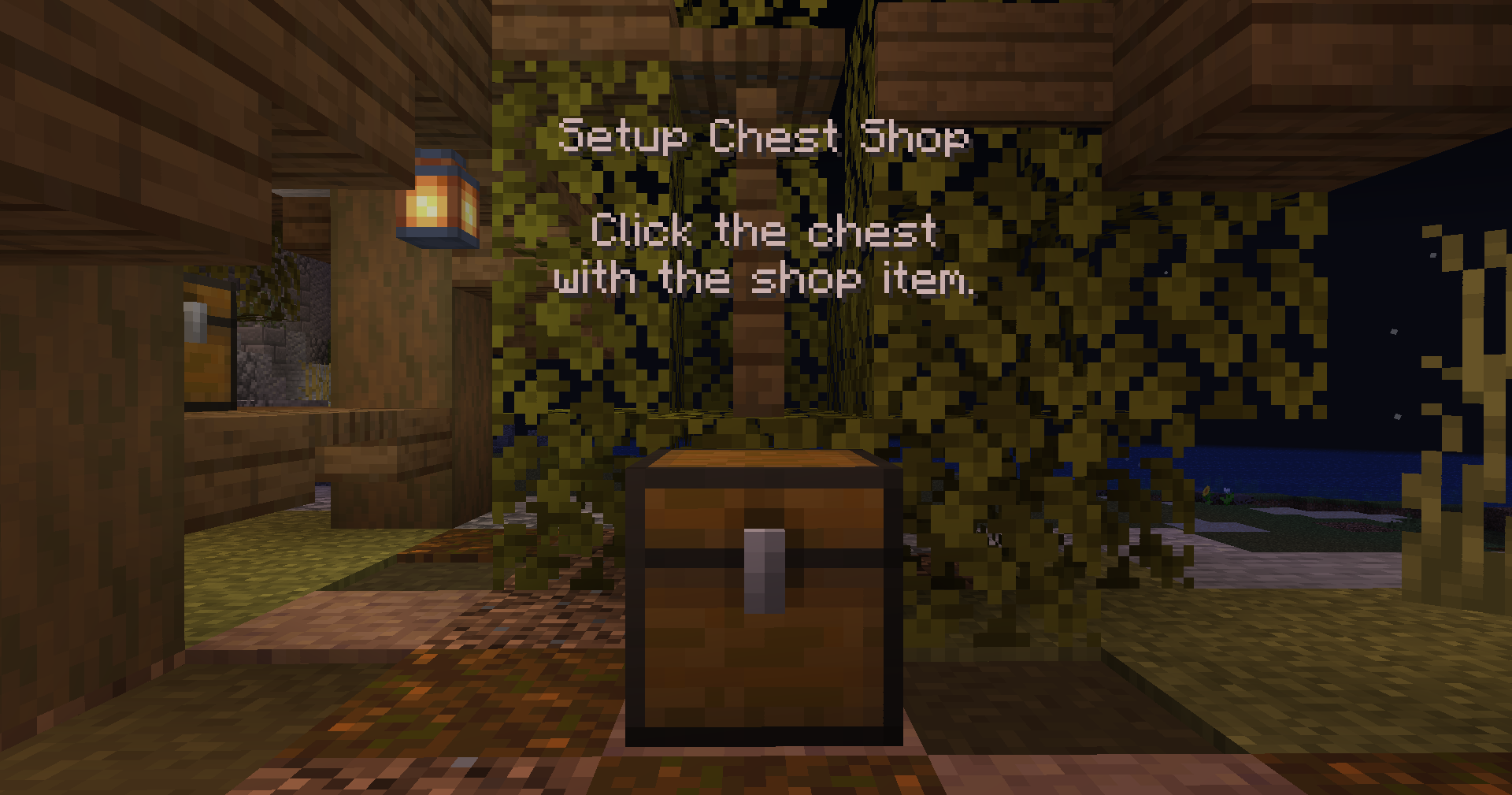
A setup hologram will appear above the container. Hold the item you want the shop to trade in your main hand and click the container to select it. The number of items held at that moment becomes the initial transaction amount. For example, holding 16 Bread will configure the shop to trade 16 Bread per transaction.
Once the item has been selected, the management menu will open automatically, allowing you to finish configuring the shop.
Managing a Chest Shop
The owner and assigned employees can right-click the shop container to access its management menu. From here, the shop can be configured and maintained without having to recreate it.
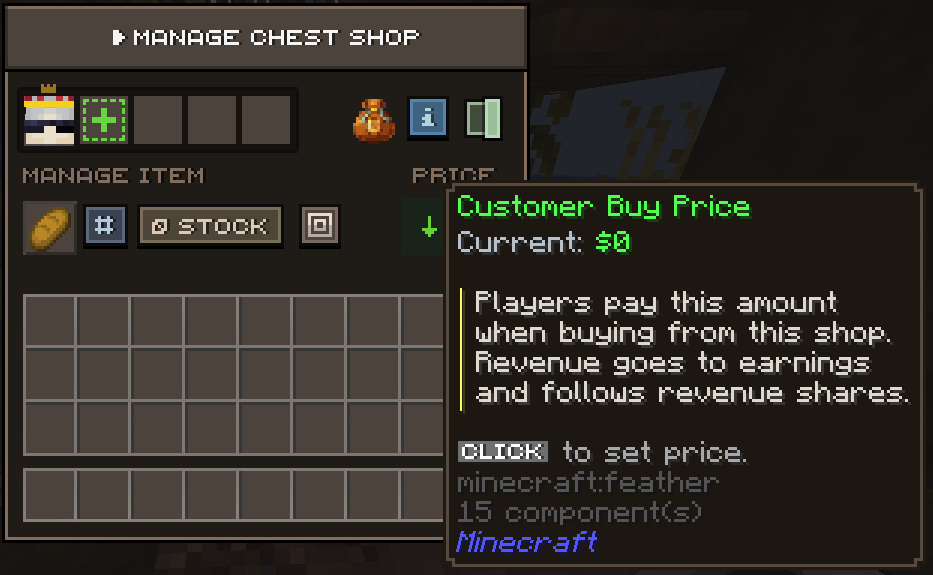
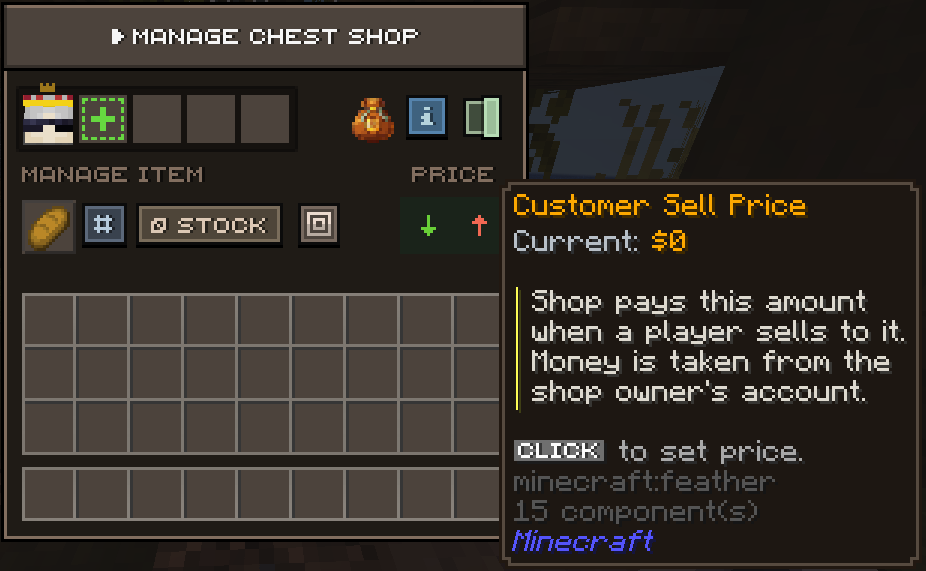
The management menu provides access to:
- Shop owner and employees
- Stock storage
- Shop item
- Customer Buy Price
- Customer Sell Price
- Transaction amount
- Teleport area
- Open or closed status
- Pending earnings
Setting the Prices
Each Chest Shop can be configured with separate prices for buying and selling. This allows a shop to sell items to customers, purchase items from them, or support both types of transactions at the same time.
Customer Buy Price
The Customer Buy Price determines how much a customer pays to purchase the configured transaction amount from the shop. For example, if the price is set to $100, the customer pays $100 and receives the configured number of items. The money is added to the shop's pending earnings and distributed according to any configured employee revenue shares.
Customer Sell Price
The Customer Sell Price determines how much the shop pays when a customer sells the configured transaction amount to it. For example, if the price is set to $50, the customer provides the required items and receives $50, which is taken directly from the shop owner's balance.
Either price can be set to 0 to disable that side of the shop. This allows you to create shops that only sell items, only purchase items, or support both.
Transaction Amount
The Transaction Amount determines how many items are exchanged during a single transaction. If the amount is set to 16, a customer purchasing from the shop receives 16 items, while a customer selling to the shop must provide 16 matching items.
This amount can be changed at any time through the management menu without recreating the shop.
Stock Storage
Chest Shops use virtual storage to manage their stock. Open the management menu and select Stock to deposit or remove items. Only items matching the product configured for that shop can be placed into its storage.
Storage can contain multiple pages, with the total number of available slots depending on the owner's permissions and rank. If the owner later loses access to bonus storage slots, any items already stored inside them remain safe. Expired slots disappear only after the items they contain have been removed.
Buying and Selling
Customers interact directly with the shop container to trade. Players who are not the owner or an employee can use the following controls:
- Left-click - Buy the configured items from the shop.
- Right-click - Sell the configured items to the shop.
Transactions are only available while the shop is open. If a shop has been closed by its owner or an employee, customers cannot buy or sell until it is opened again.
Finding Shops with /buy and /sell
You do not need to manually search through different Lands to find a shop selling or purchasing a specific item. Hold the item you are looking for in your main hand and use /buy or /sell to search available shops.
Finding Shops That Sell an Item
Use /buy while holding an item to find shops that currently sell it. The menu displays available Lands and Wild locations, along with the lowest available customer price, making it easier to compare sellers before making a purchase.
Finding Shops That Buy an Item
Use /sell while holding an item to find shops that currently purchase it from players. The menu displays available locations together with the highest available payout, allowing you to compare buyers before selling your goods.
Selecting a Land begins a teleport to the shop's configured teleport area and consumes the required TP Scrolls. If you do not have enough TP Scrolls, the teleport cannot be started. Shops located in the Wild are displayed separately and provide coordinates instead of a Land teleport.
Shop Management
Chest Shops can be operated by more than one player and include additional management options for revenue distribution, teleportation and shop availability.
Employees & Revenue Shares
Shop owners can add other players as Employees, allowing multiple players to help operate the same business. Employees can access the shop and manage its stock, making it possible for them to keep products supplied even when the owner is unavailable.
Each employee can also be assigned a percentage of the shop's sales revenue. Combined employee revenue shares cannot exceed 100%, and the owner receives whatever percentage remains after all employee shares have been calculated.
Revenue is stored as pending earnings rather than being deposited immediately. Each participant must claim their own share through the shop management menu or by using:
/chestshop claim [shop ID]
Employees can manage the shop and its stock, but they cannot change the configured Shop Item, Customer Buy Price or Customer Sell Price. These settings remain under the owner's control.
Teleport Area
Chest Shops located inside a Land can have an optional Teleport Area configured through the management menu. When another player finds the shop through /buy or /sell and selects its Land, they will be teleported to this designated area.
If no custom teleport area has been configured for the shop, the Land's default teleport destination will be used instead.
Opening and Closing a Shop
The owner or an employee can change the shop between Open and Closed states through the management menu. An open shop allows customers to trade normally, while closing it temporarily disables all customer transactions without removing the shop or its configuration.
The shop's current status is also displayed on its hologram, allowing customers to immediately see whether trading is available.
Removing a Shop
Before removing a Chest Shop, make sure its virtual stock has been emptied and all pending earnings have been claimed. This ensures that no stored items or revenue are left behind when the shop is removed.
Once the shop is ready to be removed, the owner can sneak while breaking the shop container or use:
/chestshop remove [shop ID]
The shop ID required for the command can be found inside the management menu.