

Joining the Server
Joining the server only takes a few minutes and does not require any additional downloads before connecting. Warship supports Minecraft Java Edition versions 1.21.8 - 1.21.11 and uses its own server resource pack, which will be offered automatically when you join.
Connecting to the Server
Launch Minecraft Java Edition using any supported version between 1.21.8 and 1.21.11. From the main menu, select Multiplayer to open your server list.
Adding Warship
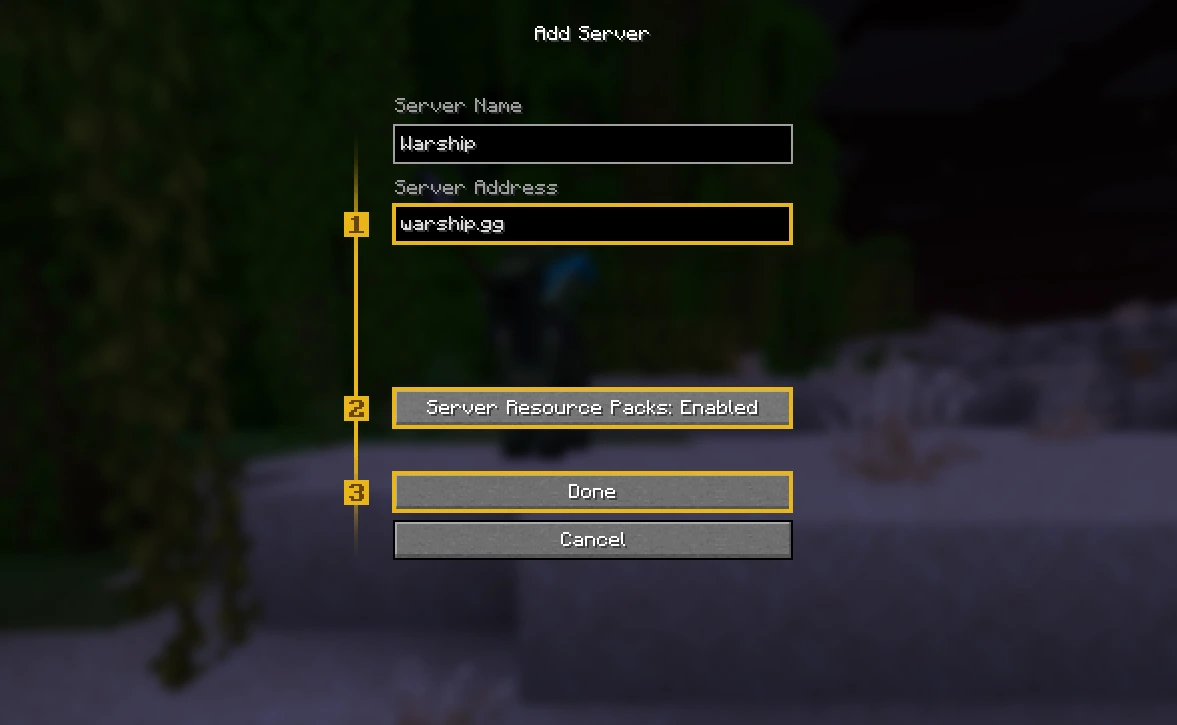
Click Add Server and enter the following address into the Server Address field:
warship.gg
You can choose any name for the server entry. Before saving it, make sure that Server Resource Packs is set to Enabled or Prompt. Once everything is configured, click Done, select Warship from your server list and connect.
Server Resource Pack
Warship uses a custom Resource Pack to provide many of the visual elements that make up the server experience. It includes custom item appearances, models, textures, interfaces and other visual assets used by various gameplay systems.
The Resource Pack is downloaded automatically by Minecraft when you connect, so you do not need to download or install anything manually. It does not modify your Minecraft installation or permanently replace your existing textures; Minecraft simply loads it while you are playing on the server.
Enabling the Resource Pack
When adding the server, set Server Resource Packs to either Enabled or Prompt. Choosing Enabled allows Minecraft to download and apply the pack automatically, while Prompt asks for your permission before downloading it.
Playing without the Resource Pack is not recommended. Many custom items and visual elements rely on it and may appear incorrectly or lose their intended appearance if the pack is disabled.
First-Time Login
Players connecting without a premium Minecraft account must create a password when joining for the first time. Registration is completed in-game using: /register password password
Replace both instances of password with the password you want to use. The password must be entered twice to confirm that it was typed correctly.
After registration, you will only need to authenticate again when your login session expires. When asked to log in, use: /login password
Use the same password you selected during registration and make sure to remember it, as it will be required for future logins.
/login and can continue directly to the Resource Pack download.Having Trouble Joining?
If you followed the steps above but still cannot connect correctly, first make sure that you are using a supported Minecraft version and that Server Resource Packs are enabled. Restarting Minecraft and reconnecting can also resolve problems caused by an interrupted Resource Pack download.
Some modified clients, launchers and mods may interfere with the Resource Pack or other server features. In particular, Lunar Client may cause issues with the custom Resource Pack. For the most reliable experience, use the standard Minecraft client or a compatible modded installation with trusted, lightweight quality-of-life mods.
Bedrock Support
Warship does not officially support Minecraft Bedrock Edition, meaning players cannot connect directly using the standard Bedrock client on consoles, mobile devices or Windows.
However, players on Android and iOS devices may still be able to join by using a compatible Java Edition emulator or launcher. These applications allow the Java version of Minecraft to run on supported mobile devices and connect to the server normally using warship.gg.
In that case, Join our Discord Server and contact the Support Team through tickets.